First Steps
Welcome! This quickstart gets you up and running with Super Productivity: you will try the web app, add and manage tasks, use the time tracker, then see how to install the desktop or mobile app and where to go next (sync, backups, and other resources).
Part 1: Quick Tour (web app)
Open the Web App. It doesn't include every desktop feature but is enough to get started. A few short tips guide you to your first task and explain where it lives: the Inbox keeps every task that isn't in a project, and a task planned for today also shows in Today. The last tip offers Show me more: a quick tour on your own task (time tracking, subtasks, projects and tags, Planner) that ends with the features still switched off, which you can turn on in Settings → App features. It stays under Help → Quick tour, and guided tours are under Help → How to. Coming from Todoist or TickTick? See 2.20-Import-from-Todoist and 2.22-Import-from-TickTick.

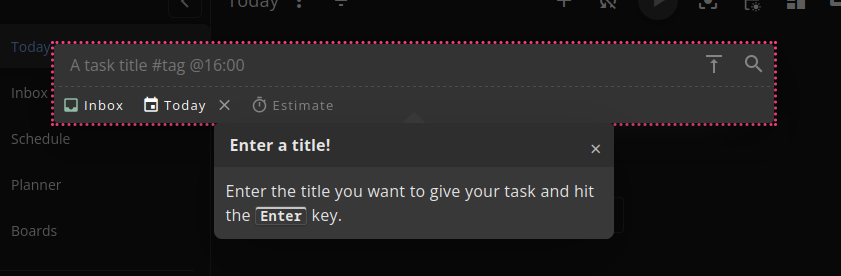
Add a task: Use the "+" button in the top right or Shift+A. Add as many tasks as you like. Short-hand syntax is available (similar to many other task managers). Press Escape or click outside the task overlay when done.

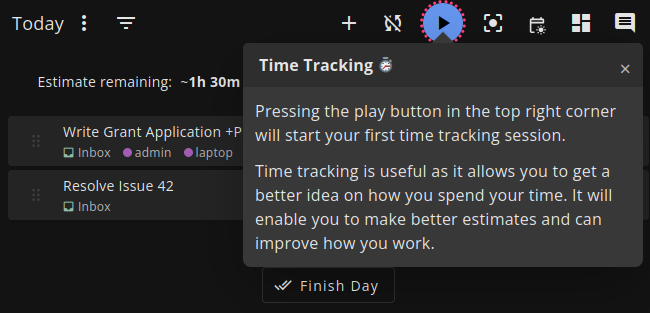
Time tracking: Super Productivity integrates time tracking as a core feature. You can remove or add time usage later. Start and stop the timer from anywhere in the app.

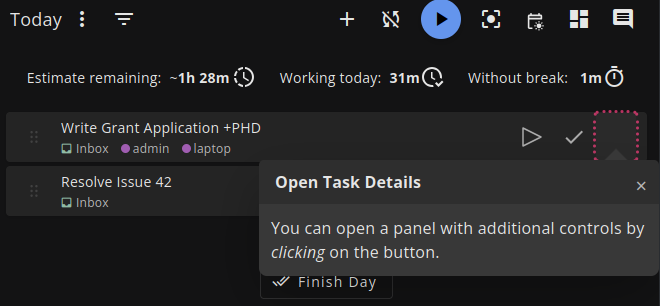
Task details: Open the side panel on any task to edit its details.

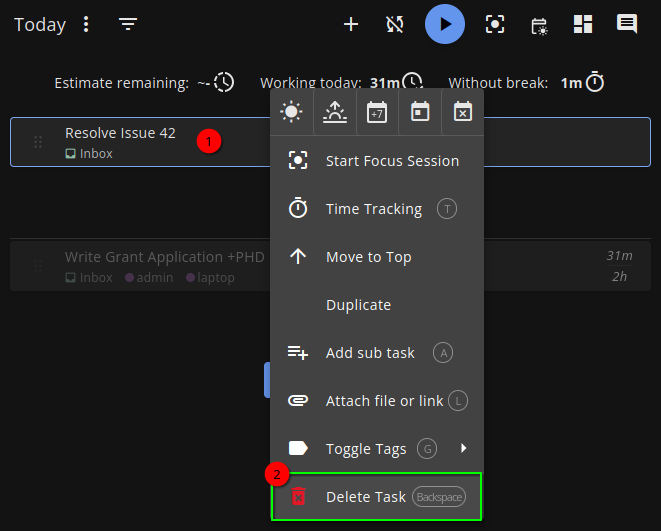
Delete a task: Right-click the task and use "Delete Task" at the bottom, or select the task and press Backspace.
Next, open Settings.
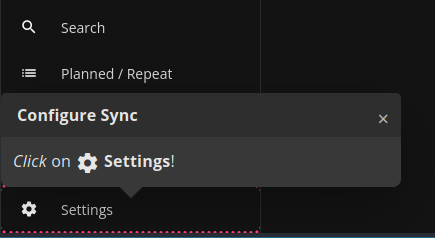
The web app is limited to your browser on one computer at first. If Super Productivity works for you, you will likely want to configure Sync so your data is saved reliably—even on a single computer. We can skip Sync for now and set it up later (see 1.02-Configure-Data-Synchronization).

Finish day: On the main Today view there is a "Finish Day" button. It moves completed tasks to the archive (find and restore them under History in the ⋮ menu) and shows an end-of-day report: time tracked vs estimates, then subjective ratings (how you felt while working).
On Fridays, Finish day also wraps up the week: the week's time per day comes first, the reflection asks about the week, and the Plan tab shows next Monday to Friday, where "Add open tasks from this week" puts this week's unfinished one-off tasks (including ones overdue since Monday; repeating tasks and tasks with a time are left out) on Monday. To get the same view on another day, for example a weekend review, open #/active/daily-summary?scope=week.


That's the basics. Super Productivity supports many working styles; focus on adding tasks and using the time tracker for now. You can explore more options when you're ready.
Part 2: Download and Install
When you are ready to use the desktop or mobile app, install it for your platform:
That page covers all platforms (Windows, Linux, macOS, Android), including Snap, Flatpak, the official Arch package, AppImage, and store links. You can also keep using only the web app if you prefer.
Part 3: Additional Resources and next Steps
If you make a mistake: You can restore from a backup. See 2.02-Restore-Data-From-Backup.
External getting-started material:
- Getting started with Super Productivity (dev.to) — recommended first read.
- YouTube demo (longer walkthrough).
- GitHub Discussions — questions and answers.
Other articles: how I use the app, eat the frog with Super Productivity.

Where to Go next
- Set up sync: 1.02-Configure-Data-Synchronization — choose a provider (SuperSync, Dropbox, WebDAV, or Local file) and configure it so your data is backed up or synced across devices.
- Restore from backup: 2.02-Restore-Data-From-Backup.
- Downloads and install (reference): 2.01-Downloads and Install.
- Manage your data (concept): 4.23-Managing-Your-Data — what your data includes, import/export, backups, and sync.
- Keyboard shortcuts and short syntax: 3.03-Keyboard-Shortcuts, 3.04-Short-Syntax.