A First Steps Quick Tour
The Basics of 'Super Productivity'
Open the Web App. This doesn't contain all the features or capabilities of the desktop version but it's more than enough to get started.
There is an interactive tour that will greet you at first. These notes follow this tour closely.
!
Use the "+" button in the top right or the keyboard shortcut Shift+A to do so.
!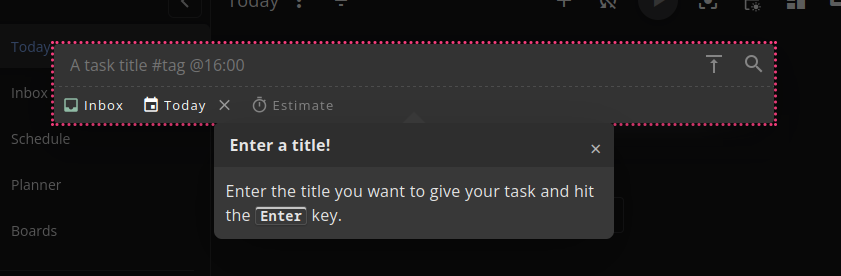
Add as many tasks as desired. There is a short-hand syntax available that is similar to many other task managers. Press 'Escape' or click outside the task overlay when done.
!
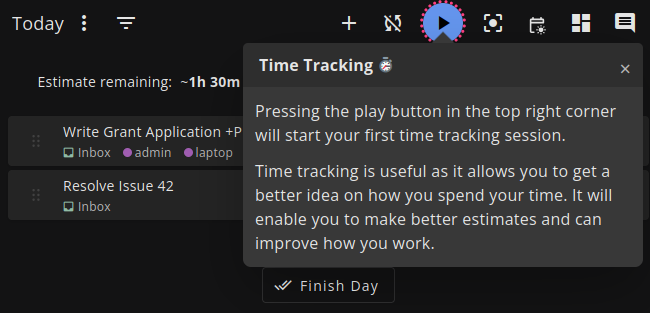
Super Productivity integrates time tracking as a core feature. It is easy to remove or add time usage later if the idea of a running stopwatch adds too much pressure. Starting and stopping can be done at anytime no matter where you are in the app.
!
!
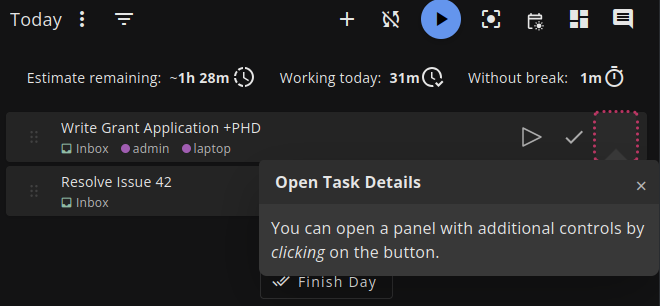
For any task in the list, you can open a side panel to edit details any details associated with it.
!
!
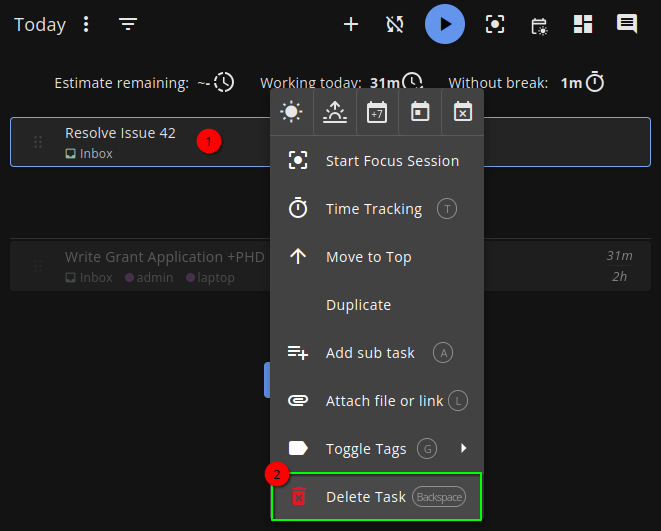
To delete a task, right click on it to open it up and the "Delete Task" button will be at the bottom. 'Backspace' will accomplish the same thing if the task is selected.
!
Continue with the Quick Tour to see the other areas such as Projects and Issues. Open up Settings.
!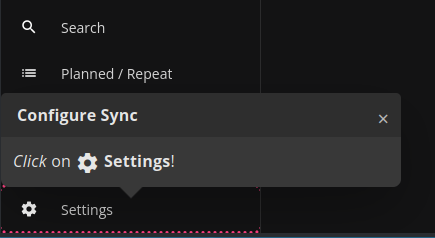
The Web App is limited to your browser on a single computer at first. Later on if you find that Super Productivity works well for you it is very likely you will want to configure "Syncing". Even if you only use a single computer, using "Sync" will ensure that all your data is saved reliably. We can ignore "Sync Settings" for now.
!
The Quick Tour doesn't cover this next part but it will eventually come up. On the main "Today" view that we have been looking at there is a "Finish Day" button:
!
This will move your completed tasks to the "Archive" and present you with an End-of-Day report for you to review. The first section sums your time tracked compared to your time estimates.
!
The second section is entirely subjective and help track trends of how you feel while working.
!
That's it! Super Productivity is still undergoing rapid development and supports a wide variety of working styles. With flexibility comes complexity... so focus on the basics of adding and managing tasks and learning to work with the time tracker for now. There are many options and ways to configure the app to accommodate you when that time comes.
See 1.01b-First-Steps_Download-and-Install for more.